Appearance
The Appearance page styles the options OptionWise shows on your product pages — fonts, sizes, colors, corners, and how a selected value looks. It applies to your whole store: every option set uses the same appearance.
Open it from Appearance in the OptionWise menu.
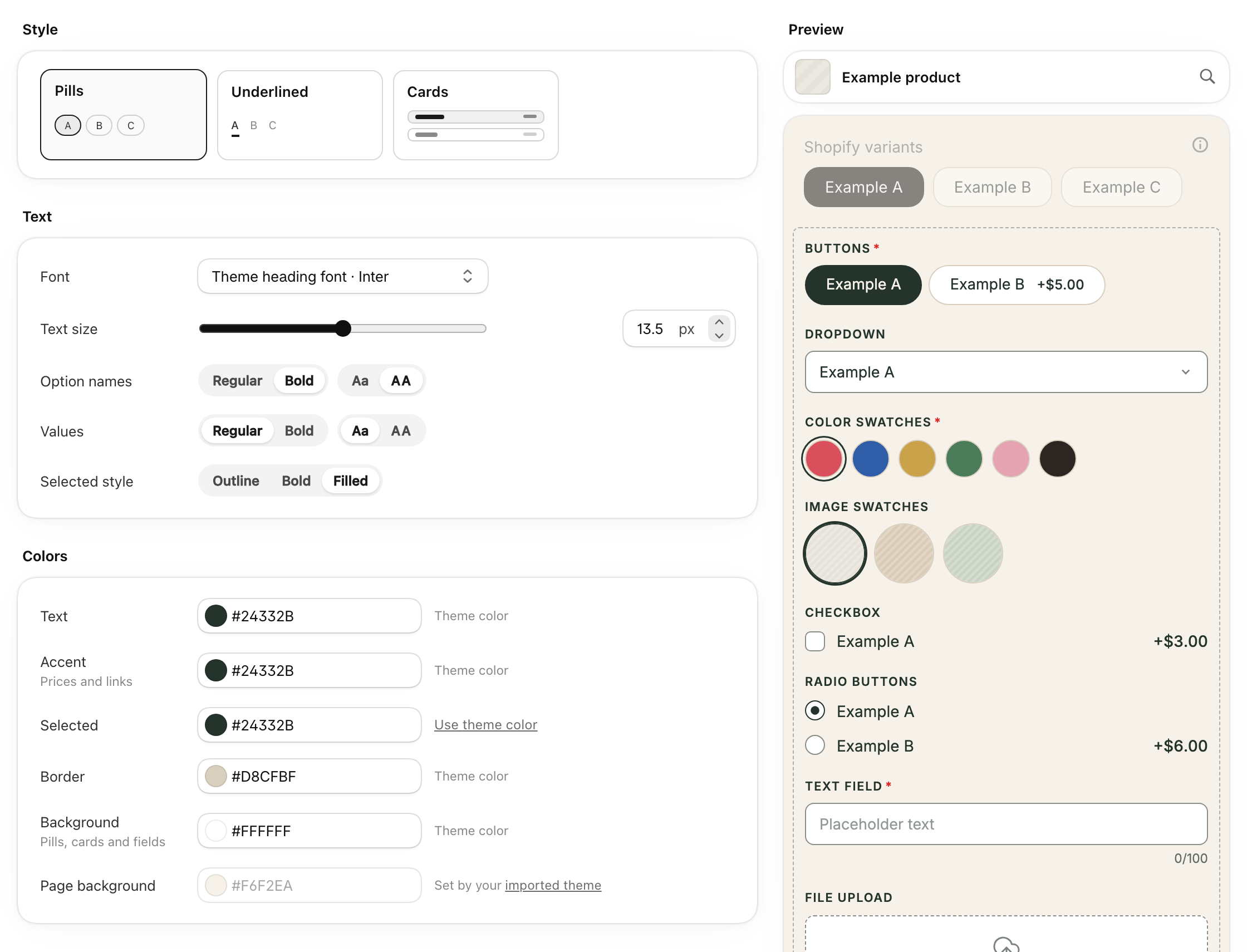
Settings are on the left and a live preview is on the right. Nothing reaches your store until you click Save in the bar at the top of the page.
Match your theme in one click
The quickest way to a look that fits your store is to let OptionWise read your theme.
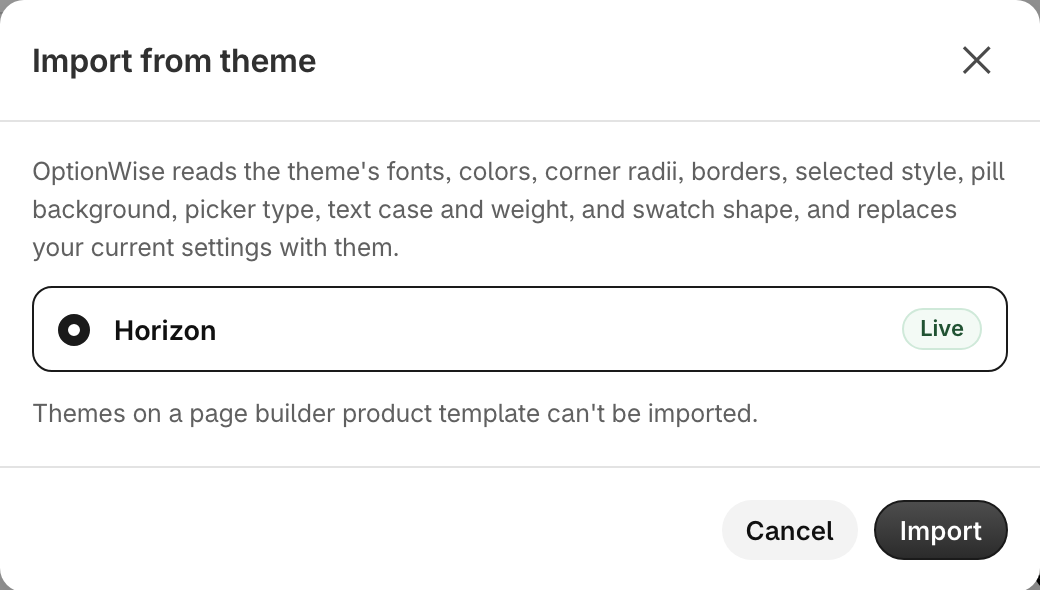
Click Import from theme
It’s at the top of the page. Choose your live theme, or a draft theme you’re working on, and click Import.
Check the preview
OptionWise fills in the settings from your theme’s fonts, colors, corners, borders, and the way it styles its own variant picker. The preview now shows your theme’s variant picker above the options, so you can compare the two side by side.
Adjust and save
Change anything you like, then click Save.
Importing replaces your current settings. After an import, each color setting shows Theme color while it matches the theme, and a Use theme color link when you’ve changed it, so you can always get back to what the theme uses.
Themes whose product page is built with a page builder app (GemPages, PageFly, Shogun and similar) can’t be imported. Pick the settings by hand instead.
Choose a style
The Style section at the top sets the overall shape of the options. The other settings then fine-tune it.
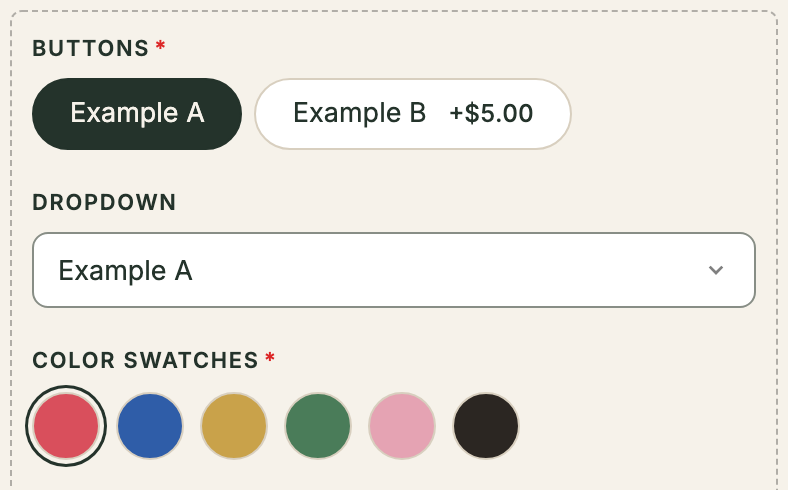
Pills
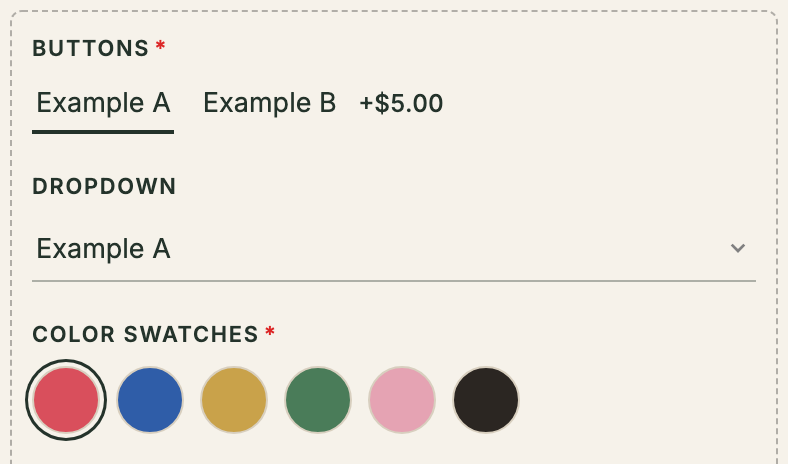
Underlined
Cards
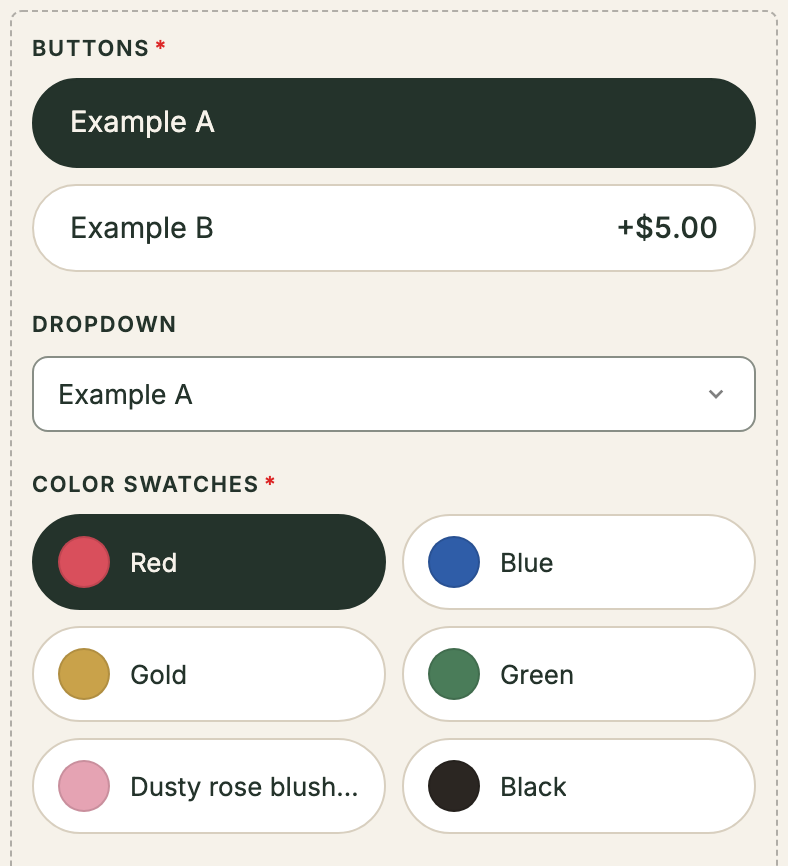
- Pills — rounded buttons for choices, boxed fields for dropdowns and text.
- Underlined — no boxes. The selected choice gets a line beneath it, and fields are a single line.
- Cards — each choice is a full-width row with its price on the right. Color and image swatches become tiles with the name beside or below them, or filling the tile.
Settings
Most settings do what their name says, and the preview shows the result as you change them. The ones worth knowing more about:
Text
- Font — Theme body font (the default) uses whatever your theme uses for body text, so if you change your theme’s font the options follow. Theme heading font uses your theme’s heading font; import from your theme first so OptionWise knows which one that is. System sans and Georgia stay the same whatever your theme uses.
- Option names sets the weight (Regular or Bold) and capitalization (Aa or AA) of the option name, for example “Size”. Values does the same for the choices (“Small”, “Medium”, “Large”).
- Selected style — how a chosen value stands out: Outline, Bold, or Filled.
Colors
- Text colors option names and values.
- Accent colors prices and links, never the controls themselves.
- Selected colors the selected button or swatch, checked checkboxes, and the radio dot.
- Border colors the borders of unselected buttons, swatches, and fields.
- Background is the fill of unselected buttons, cards, and fields.
- Page background is read-only: it comes from your imported theme and is what the preview shows behind the options.
If Selected and Border are the same, the page shows “Same as Border — swatches use the text color when selected.” so a selected swatch still stands out.
Fields
- Buttons covers choice buttons and cards: Border radius, Border width, and Padding. With the Underlined style there are no button borders, so this shows Thickness instead — the weight of the line under the selected choice.
- Swatches — Size, and Shape: Auto shows color swatches as circles and image swatches as squares; pick ● or ■ to use one shape for both. Swatch labels shows each value’s name under its swatch. With the Cards style, Swatch cards instead places the name to the right of the swatch (Label right), below it (Below), or has the color fill the whole tile (Fill).
- Other covers dropdowns, text fields, file uploads, and the checkbox and radio indicators. It has its own Border radius and Border width, so you can pair round buttons with square fields, as many themes do.
Spacing
- Option spacing is the gap between options.
- Dividers draws a line between each option.
- Group as card wraps all the options in a tinted card, setting them apart from the rest of the product page.
Validation
- Required mark — how required options are labeled: Asterisk *, “Required”, or None.
- Error color — the color of messages like “This field is required”. Click Preview error state to see it on the preview.
Preview
The preview shows the real OptionWise options, one of every option type, so what you see is what customers get.
- Preview with your own product — click the search icon and choose a product that has an active option set. The preview then shows that product’s own options in place of the examples.
- View on store — once you’ve picked a product, this opens its product page on your store. If you have unsaved changes, OptionWise asks you to save first, because the store only shows saved settings.
After an import, the preview also takes on your theme’s page background and add-to-cart button. Before an import, it uses a plain white background.
If the settings came from a draft theme, the button reads View on draft store and opens that draft. If what you’d see on your store could differ from the preview, for example because the OptionWise plugin isn’t on your live theme yet, OptionWise explains why in a “Your options may look different on the store” message before opening it.