Linked product
A Linked product option turns one of your existing Shopify products into a picker on another product’s page. Instead of typing values by hand, you point the option at a real product — say a Frame product with Size and Color variants — and OptionWise pulls in its values, prices, and live stock automatically. When the customer makes a choice, that real frame is added to the cart, so Shopify keeps its price and stock accurate for you — there’s no separate stock count that can drift out of date or oversell.
A single option shows one picker per variant option the linked product has (Size, Color, …), and the customer’s choices add up to one specific frame.
You’ll find it at the bottom of the type picker, under Advanced.
When to use it
The motivating case is shared inventory across many products. Imagine a shop with 100 art prints, each offered in the same range of physical frames. The frames are the only finite stock. Rather than recreating frame variants on all 100 prints (and keeping one frame pool in sync across them), you:
- Keep one “Frame” product that holds the real frame stock.
- Add a single Linked product option bound to that Frame product.
- Target the option set at every print.
Now a customer on any print picks a frame, that real frame is added to their cart, and it comes out of the one shared frame stock. One source product backs all 100 prints.
How it’s different from a normal option
| Normal option (e.g. Dropdown) | Linked product | |
|---|---|---|
| Values | You type them | Pulled from the linked product’s variants |
| Price | You set add-on prices | The linked variant’s own price |
| Stock | Not tracked | The linked variant’s live Shopify inventory |
| In the cart | One line, options listed on it | One line, with the chosen variant grouped under the product |
Think of it as controlled, not frozen: the linked product owns the values, their order, the price, availability, and the option’s name. You still own how each dimension is presented, plus visibility and where it sits in the option set.
Add a Linked product option
- In your option set, click Add option.
- Set Type to Linked product (under the Advanced group at the bottom of the list).
- Click Select a product and choose the product whose variants you want to offer (for the framing example, your Frame product).
- OptionWise reads the product and shows its variant options (Size, Color). For each one, pick how it should appear — Buttons, Dropdown, or Radio buttons.
- Save.
The option’s name comes from the linked product — the Option name field shows the product’s title and can’t be edited.
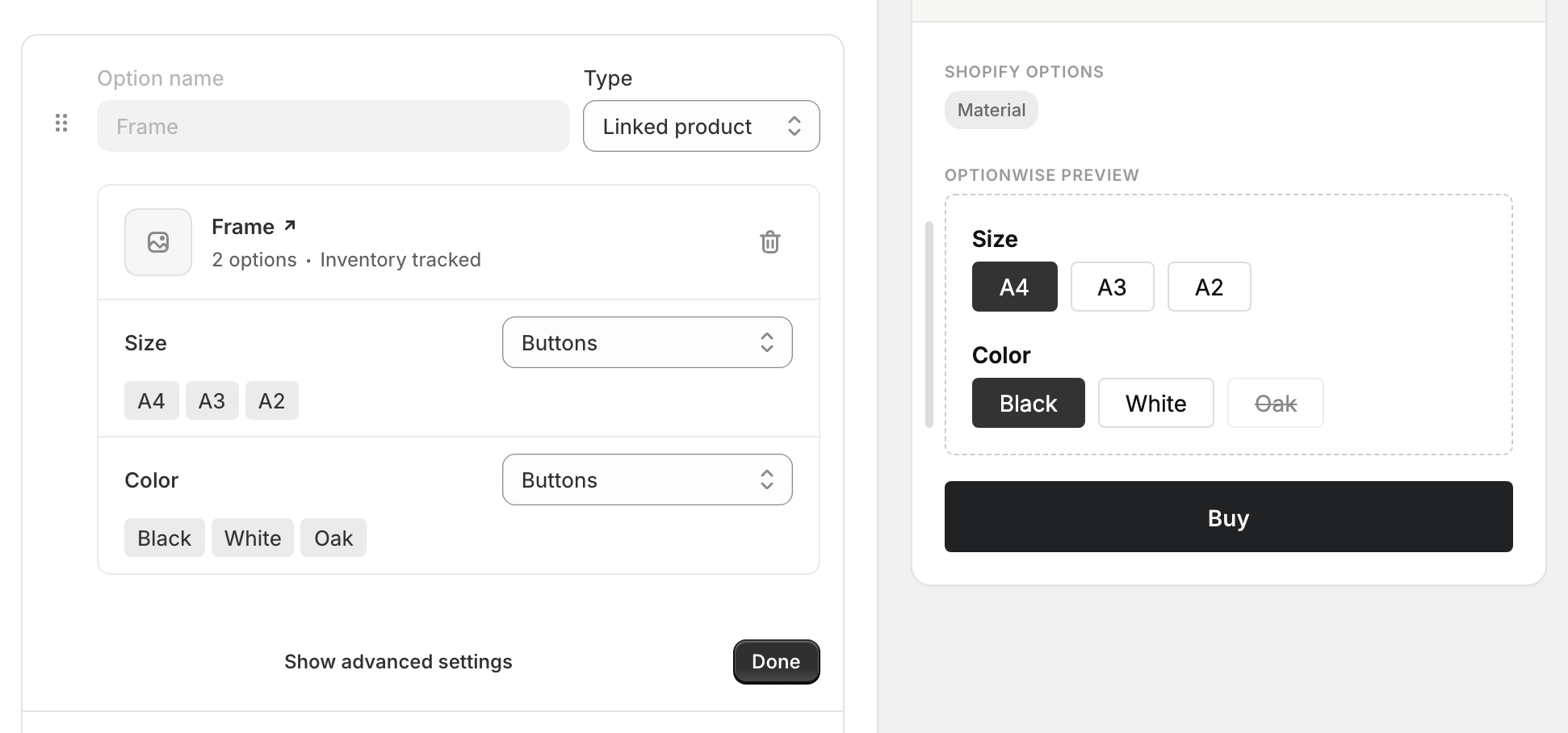
What customers see
A single labeled control with one picker per variant option (Size, then Color). As the customer narrows their choice, combinations that are out of stock or don’t exist are disabled — the same behavior as Shopify’s own variant picker. Their choices add up to one specific frame, which is added to the cart.
Pricing
You don’t set add-on prices for a Linked product option — the price comes from the linked product. The customer pays the original product’s normal price plus the chosen frame at the frame’s own price. Because the frame is a real Shopify product, sale prices, B2B catalogs, and multiple currencies all work automatically.
Because there’s nothing to set, the editor doesn’t show a Pricing tab for this type. See How pricing appears in cart for how this looks to the customer.
In the cart and at checkout
The product and the chosen frame travel together as one cart line: the product on top, with the frame listed underneath it as part of the same line. That grouping is Shopify’s own way of showing a product bought with a component — it isn’t something your theme adds, and it’s what keeps the two moving together:
- Change the product’s quantity and the frame’s quantity changes with it.
- Remove the product and the frame goes too.
Checkout keeps the same grouping. On the order in your admin, the product and the frame are separate line items grouped together, each at its own price. Both also show in the order confirmation email; see Notification emails for the one-time template step that lists the customer’s selections there.
Shipping
Shipping treats the frame as a real item in the order, not as an add-on to the product. Weight-based and carrier-calculated rates count the frame’s weight on top of the product’s own, and shipping apps see both items. So give every frame variant an accurate weight in Shopify, just as you would for a product sold on its own — a frame with no weight set ships as if it weighed nothing.
Inventory
This is the headline benefit. Because the customer is choosing a real product variant, Shopify counts its stock exactly as it does for any product:
- When a frame is out of stock, customers can’t add it.
- Every product that offers the frame draws on the same real stock, so it can’t be oversold — when the last one’s gone, it’s unavailable everywhere it appears.
- Stock is checked again at checkout, just as Shopify always does.
There’s no separate stock count to keep in sync — it’s always Shopify’s own, so it can never drift out of date.
Advanced settings
A Linked product option has one advanced setting:
- Visibility — show the picker only after another choice is made. See Conditional logic. (A Linked product option can be shown or hidden by a rule, but can’t be used as the trigger for one.)
There’s no pricing to set — see Pricing above.
Keep the linked product on the Online Store
The linked product needs to stay on your Online Store sales channel for its options to show on your product pages. If it’s taken off the channel while still active, the option disappears from your live pages, and the editor shows a warning on the linked product. To fix it, open the product in Shopify and add it back to the Online Store under Publishing (or Sales channels).
Hiding a linked product from shoppers
If the linked product is a pure stock holder — a Frame product you never want shoppers to find or buy on its own — hide it without taking it off the Online Store:
- Set the product’s status to Unlisted. It stays on the Online Store, so the options keep working, but it no longer shows up in your storefront search, collections, recommendations, sitemap, or search engines. It’s only reachable by a direct link.
- Stop it being bought on its own. An unlisted product can still be added to the cart from a direct link, so if it must never be purchased alone, assign it a product template without the Buy buttons block (you can add a note like “Not for individual sale”).
If the linked product goes away
If you delete or unpublish the linked product, OptionWise doesn’t break your storefront. The editor shows “The linked product is no longer available (deleted or unpublished). Link another product or delete this option.” — click Re-link a product to choose a different one, or delete the option. Meanwhile the product page shows the option as unavailable rather than erroring.
Related
- Assign options to products — target one Linked product option across many products
- How pricing appears in cart — how the charge appears to the customer
- Dropdown — a plain single-select when you don’t need inventory backing