Checkboxes
A ticklist of values the customer can pick from. By default, the customer can tick any number of boxes. You can cap it to one pick if you want, and with a single value and a blank option name the whole option becomes a classic yes/no toggle.
When to use it
- Paid add-ons the customer can combine freely (gift wrap + rush delivery + card).
- Feature flags that aren’t mutually exclusive (tags to include, accessories).
- Simple yes/no toggles (one value + blank name — see below).
Picking one or several
By default, the customer can tick as many boxes as they like. To cap it at one pick, open the option’s advanced settings → Validation, and set Maximum selections to 1. Minimum selections asks for at least that many, and Required asks for at least one. Checkboxes stay looking like checkboxes — if you want a compact picker instead, use Dropdown.
Yes/no toggle pattern
For a standalone yes/no checkbox (gift wrap, rush processing, opt in to SMS updates):
- Add a Checkboxes option.
- Leave the Option name blank.
- Add exactly one value — its name is what the customer sees next to the checkbox (e.g. “Gift wrap my order”).
With the option name blank, OptionWise hides the heading entirely — the customer just sees the single checkbox.
Pair with add-on pricing on the value to charge a surcharge when it’s ticked. On a list of several values that all have the same price, the storefront shows one note under the option name instead of a price on each value, and you can make the first few ticks free — see Add-on prices.
What customers see
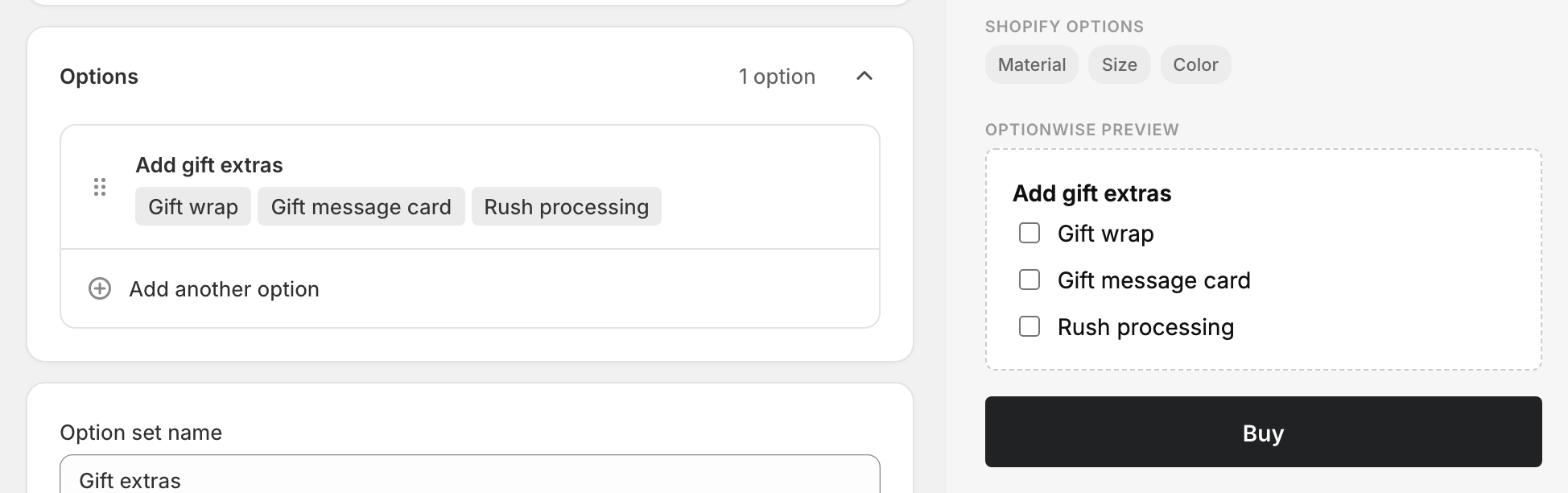
Each value renders as a checkbox with its label on the right. Ticked values are joined with commas into a single line on the order so they show up neatly in the cart, at checkout, and on the order.
Related
- Buttons — button-style list the customer can tick
- Radio — always one-pick-only
- Add-on prices — charge per ticked value
- Conditional logic — show options based on other picks