Number
A numeric input the customer types a number into, with optional minimum and maximum limits. Use it whenever the answer has to be a number — a count, a measurement, a quantity.
When to use it
- A numeric spec the customer supplies (a length, a count, a jersey number).
- Quantities your fulfillment needs to know: extra letters to embroider, number of copies.
- Anywhere free text would invite typos when only a number will do.
For a fixed set of quantities to choose between, use Buttons or a Dropdown instead.
Add a number option
- In your option set, click Add option.
- Set Type to Number.
- Enter an Option name (“Extra letters”, “Number of copies”).
- Done, then Save.
Advanced settings
- Default — a Default value to pre-fill.
- Validation → Required — require a value before add-to-cart.
- Validation → Minimum value / Maximum value — limit the number to a sensible range.
- Visibility — show the field only after another choice. See Conditional logic.
Set a minimum and maximum whenever the number has physical limits — for example, embroidery capped at 20 letters so every order fits the product.
What customers see
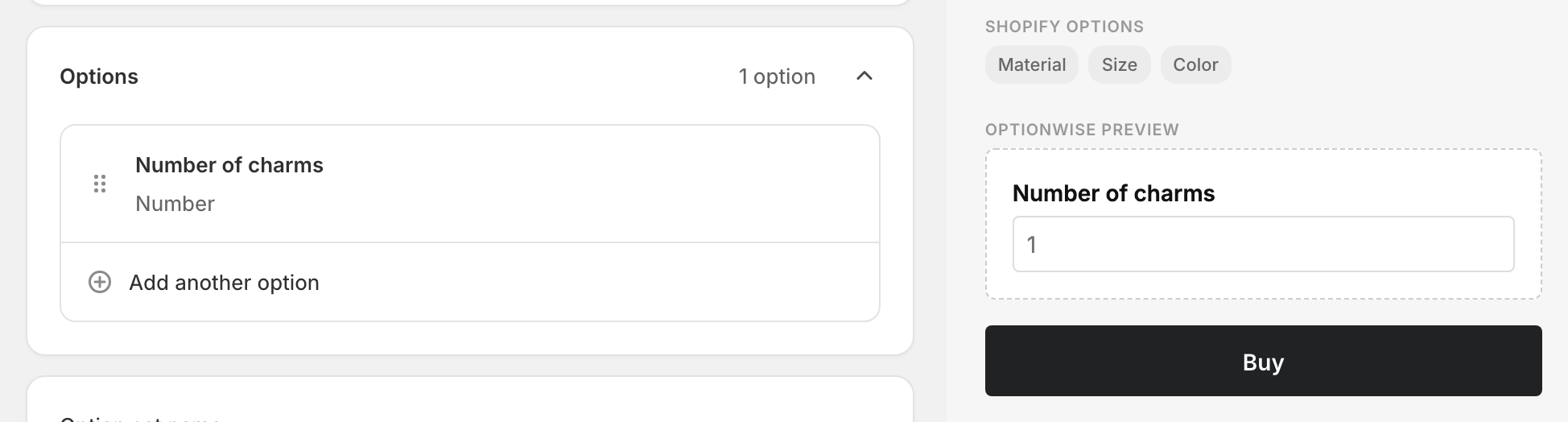
A numeric input next to your label. The entered number is added to the cart as a line-item property, so it carries through to checkout and the order.
Related
- Text (single-line) — for non-numeric short input
- Buttons — for a fixed set of quantities