Add-on prices
Charge for the upgrades customers already want — gift wrap, a premium finish, an engraving service, an extra scoop. Put a price on an option value and OptionWise does the rest: shoppers see the price beside the choice and an Add-ons total as they pick, the charge is added to the cart automatically, and it’s collected at checkout like any other line. Prices show in each shopper’s local currency.
Price a value
-
Open the option and click Show advanced settings.
-
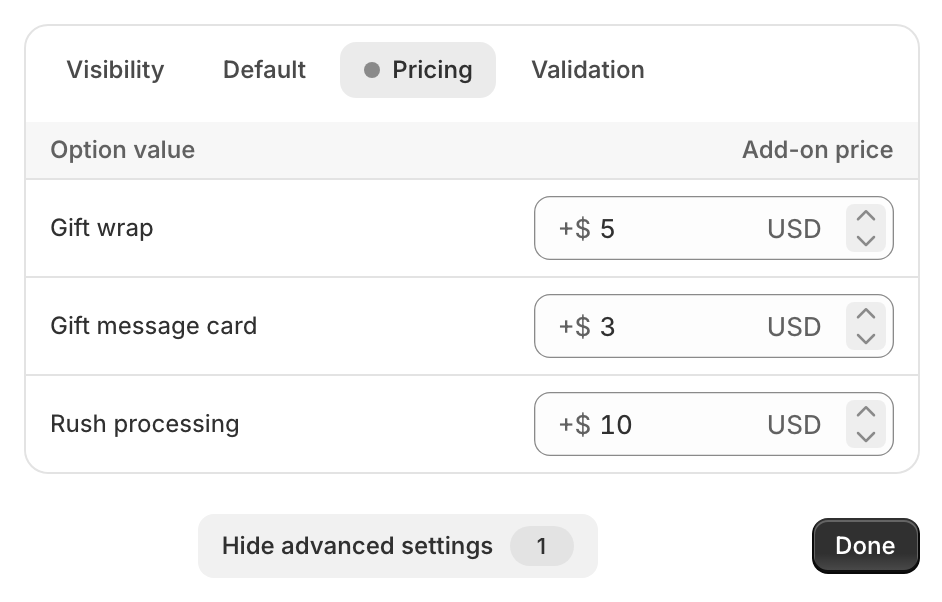
Open the Pricing tab. Each of the option’s values is listed with an amount field. (The very first time, click Enable add-on pricing — a one-time click for your store.)
-
Enter the add-on amount for any value you want to charge for. Amounts are in your shop’s base currency (the field shows a
+and your currency symbol). Leave a value blank or0for no charge.To charge the same amount for every value, type it in the All values row at the top of the table — it fills in every value, and values you add later get the same price. The row shows Mixed when values have different prices; press Delete in it to clear every price.
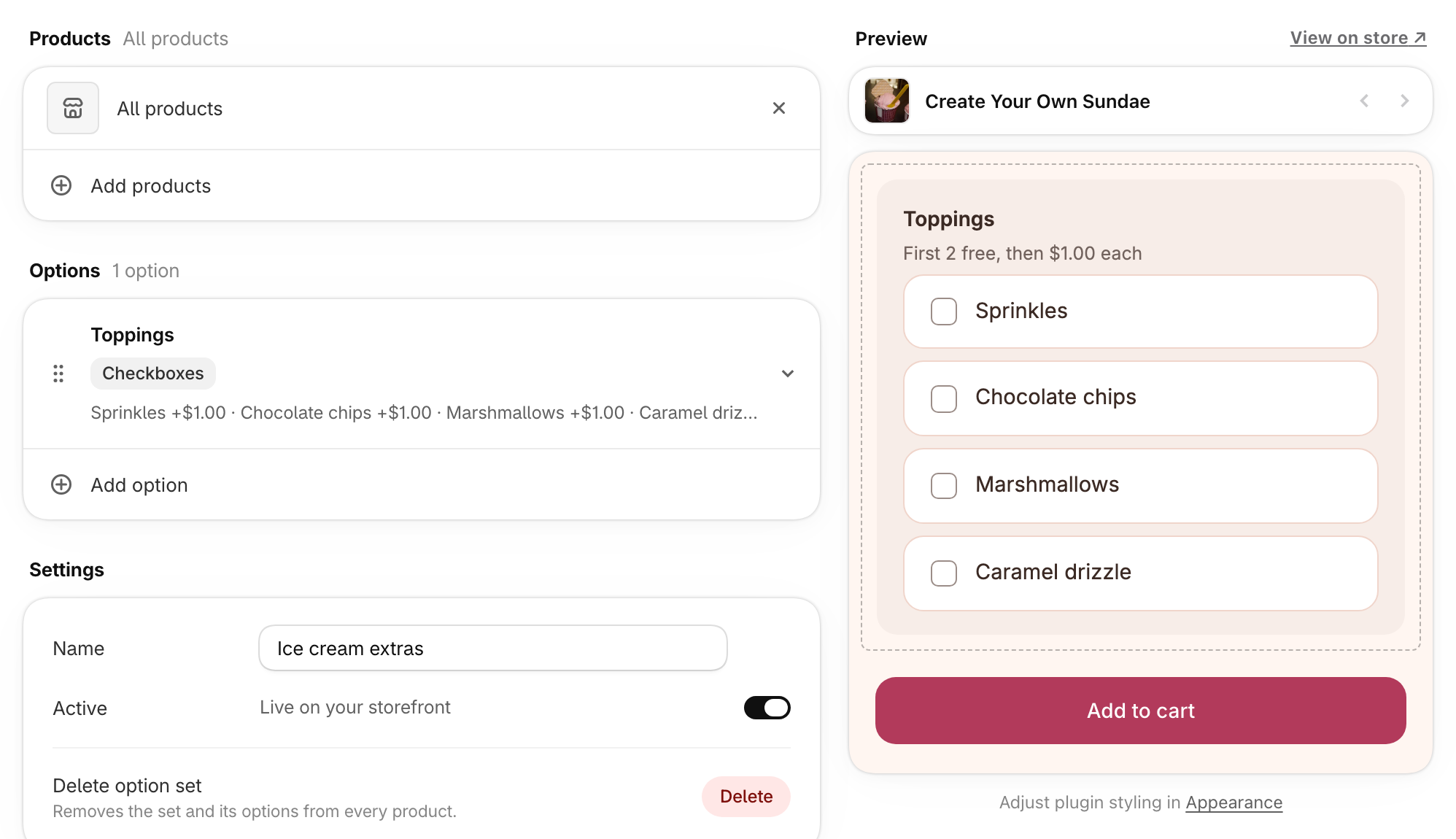
On an option where shoppers can pick more than one value, giving every value the same price shows it once under the option name — “$1.00 each” — instead of on each value.
-
Save the option set.
Make the first selections free
For an option where shoppers can pick more than one value — “Toppings, $1 each, first 2 free” — set every value to the same price (the All values row is quickest), then set Included free at the bottom of the Pricing table to how many selections cost nothing. Shoppers see “First 2 free, then $1.00 each” under the option name, and only selections beyond that are charged.
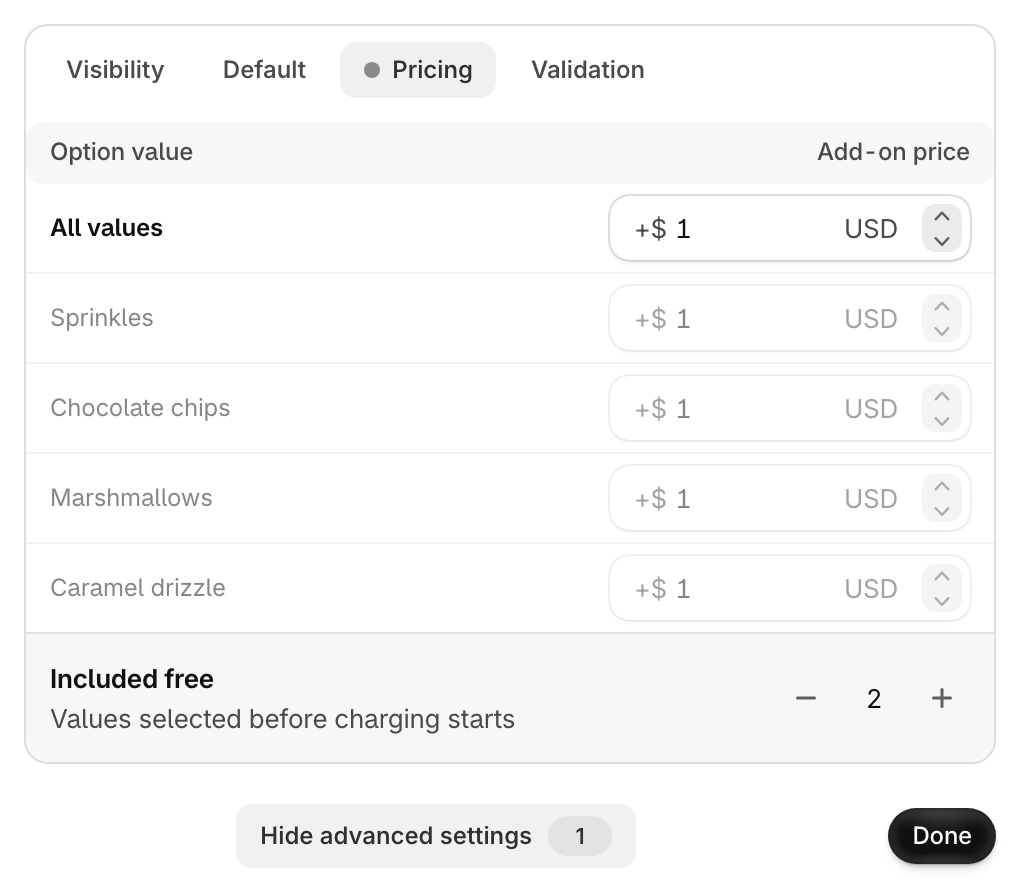
Included free shows only when every value has the same price and the option allows more than one selection (maximum selections isn’t 1). Give a value a different price, or set maximum selections to 1, and the setting is removed.
How many priced values you can have
Your published option sets can hold several hundred priced values combined —
and many more when values within an option share the same price. Only values
with an amount count; blank or 0 values don’t. The limit is store-wide, so
if a save would go over it, OptionWise stops the save and says so — remove some
priced values, give an option’s values the same price, or unpublish a set
you’re not using.
The Add-ons product
Enabling add-on pricing creates one product in your catalog, named Add-ons. It carries the add-on charge in the cart and stays hidden from your storefront, search, and collections — there’s nothing to manage.
Its name and image are what shoppers see on the add-on line at checkout, so you can rename it (say, “Personalization”) or swap its icon for your logo by editing it in Shopify like any other product. Keep it Active and leave its vendor and tag as they are — OptionWise uses them to find it.