File upload
A file picker. The customer uploads a file — artwork, a logo, a photo, a document — that’s attached to the order line. Use it for custom prints, personalization artwork, “send us your design” products, and proof uploads.
When to use it
- Custom printing where the customer supplies the artwork.
- Logos or photos for personalized products.
- Any product that needs a file from the customer to fulfill.
Add a file-upload option
- In your option set, click Add option.
- Set Type to File upload.
- Enter an Option name (“Upload your artwork”, “Your logo”).
- Done, then Save.
Each option set can have one file-upload option. Once a set has one, the Type list for its other options shows File upload (already used).
Accepted file types
By default, a new file-upload option accepts Images (JPG, PNG, GIF, WebP, HEIC) and PDF documents. Under Allowed file types in the option you can also switch on Word documents (DOC, DOCX, TXT) and Excel spreadsheets (XLS, XLSX, CSV), or check All file types to accept anything.
Pick All file types if your customers send design files like AI, PSD, or EPS — those aren’t covered by the built-in groups.
Advanced settings
- Validation → Required — require a file before the customer can add to cart.
- Visibility — show the upload only after another choice. See Conditional logic.
Customers can upload files up to 20 MB each — plenty of room for artwork, high-resolution photos, and print-ready PDFs.
What customers see
An upload control next to your label. After choosing a file, the customer sees it attached; the uploaded file is linked from the order so you can download it when fulfilling.
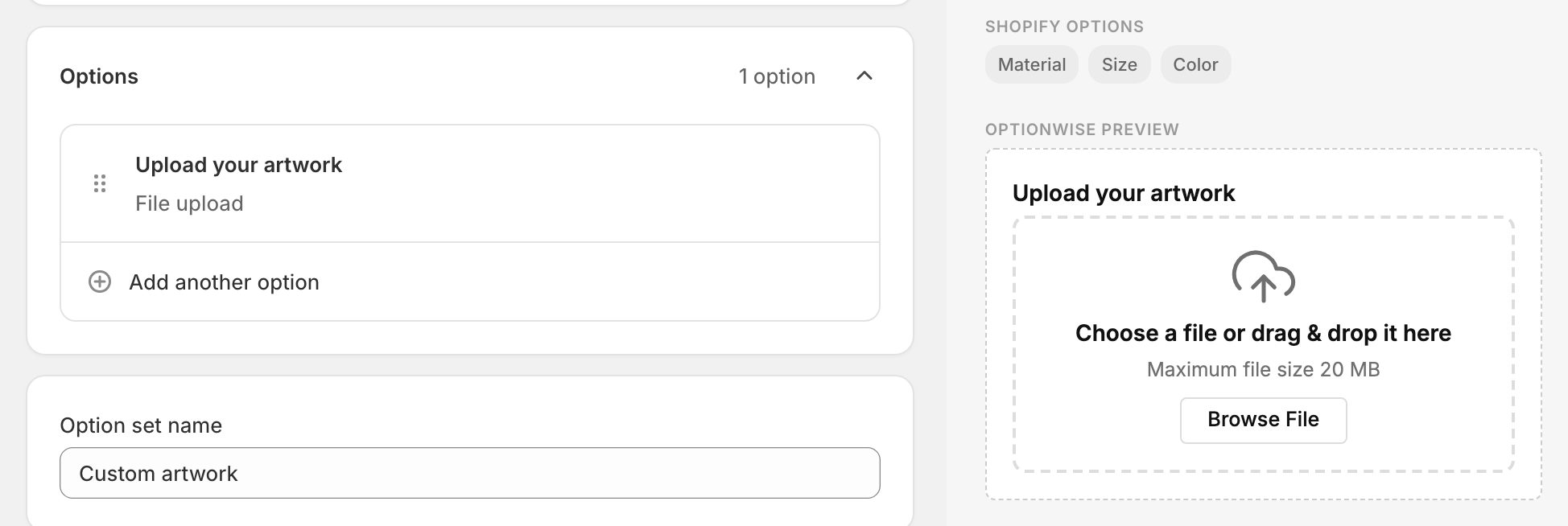
File upload and “Buy it now”
On products with a file upload, OptionWise guides shoppers through the regular Add to cart button instead of one-tap express checkout (Buy it now, Shop Pay, and similar). That way, every order arrives with the file attached and ready to fulfill. See File upload and Buy it now for more.
One path to watch: quick add buttons on collection pages add the product to the cart without opening the product page, skipping the upload (and all other options). If uploads matter for fulfillment, disable quick add for these products in your theme settings.
Related
- File upload and Buy it now
- Where options appear — finding the uploaded file on an order