Set up conditional logic
Conditional logic lets an option appear only after the customer makes a particular choice — show a “Message” field only when “Gift wrap” is ticked, show a font picker only when engraving is turned on. You set this up with a visibility rule on the option you want to reveal.
How rules work
A rule lives on the option that should be shown, and points at one or more controlling options. Rules are show-if only: the option is hidden until its rule is satisfied, then it appears. There’s no “hide when” — you describe the conditions under which the option should show.
Only options the customer picks from a fixed list can control visibility — checkboxes, dropdown, radio, buttons, color swatches, and image swatches. Free-text, number, file-upload, and linked-product options can’t be controllers. They can still be controlled — i.e. revealed by a rule.
Add a rule
- Open the option you want to reveal, and click Show advanced settings.
- Open the Visibility panel. It starts on Always visible.
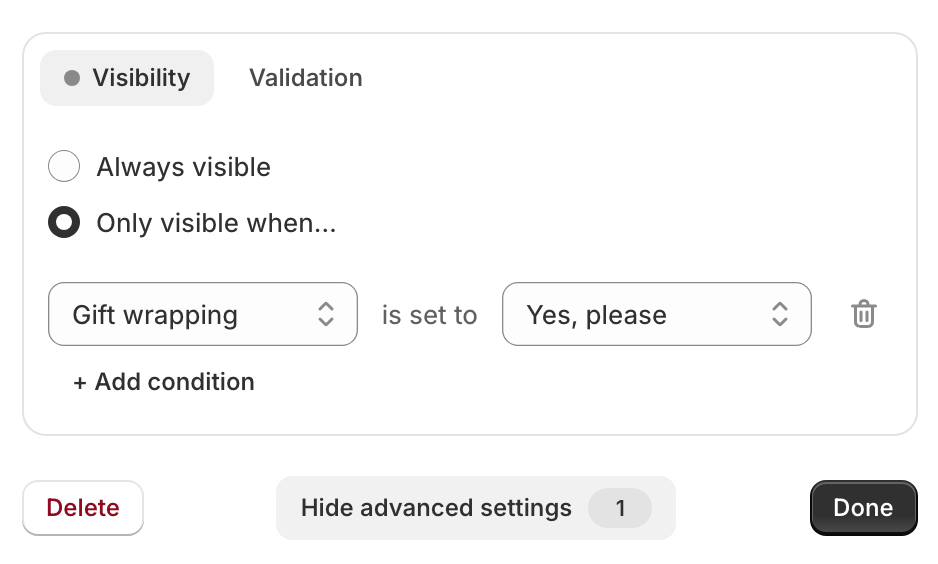
- Switch to Only visible when….
- A condition row appears: choose the controlling option, then the value it must be set to (“is set to”).
- Save the option set.
That option is now hidden on the storefront until the customer makes the matching choice. Here a Gift message field is set to show only when Gift wrapping is “Yes, please”:
Multiple conditions
Add more conditions with Add condition. How they combine depends on whether they point at the same controlling option or different ones:
- Same option → or. Two conditions on the same option (e.g. “Material is Oak” and “Material is Walnut”) mean either value — the option shows when the customer picks Oak or Walnut.
- Different options → and. Conditions on different options must all hold — e.g. “Material is Oak” and “Add engraving is Yes” shows the option only when both are true.
You can combine the two: list several values for one option (any of which will do) while still requiring a second option to match as well.
Show when anything is selected
To show an option as soon as the customer picks anything in another option — say, a Gift message once any Add-ons box is ticked — choose Any value as the condition’s value instead of adding a row for each value. It also covers values you add to that option later. The option’s summary then reads “Shown when Add-ons has any value selected”.
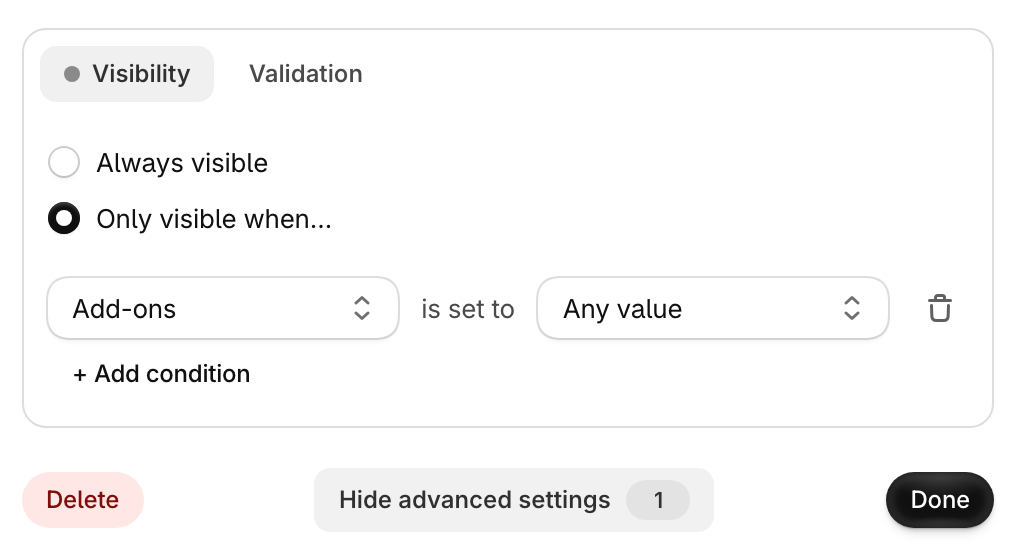
Any value is offered only when the controlling option has more than one value and can be left empty: a multi-select option, or a single-select option whose Default is None. It’s the only condition row for that option.
Good to know
- Rules track options and values by their identity, not their text — so renaming an option or a value later doesn’t break the rule.
- OptionWise prevents loops: an option can’t depend on something that ultimately depends back on it. Such options won’t appear in the controller dropdown.
- The in-editor preview and your live storefront apply rules the same way, so what you see in the preview is what customers get.
- Rules respond to the other OptionWise options in the same set, not to the product’s Shopify variants (such as its own size or color).
- A hidden option is never required. If a conditionally visible option is set to Required, the editor says “If visible, customer must fill this in before adding to cart” — customers only have to fill it in once it appears.