Text (multi-line)
A free-form multi-line text input. Use it for longer customer-supplied text — gift messages, special instructions, delivery notes, or anything that needs more than a single line. For short, one-line input, use Text (single-line).
When to use it
- Gift messages or card notes that may run to several lines.
- Special instructions (“please leave with the neighbor”).
- Any longer free-form answer.
Add a multi-line text option
- In your option set, click Add option.
- Set Type to Multi line.
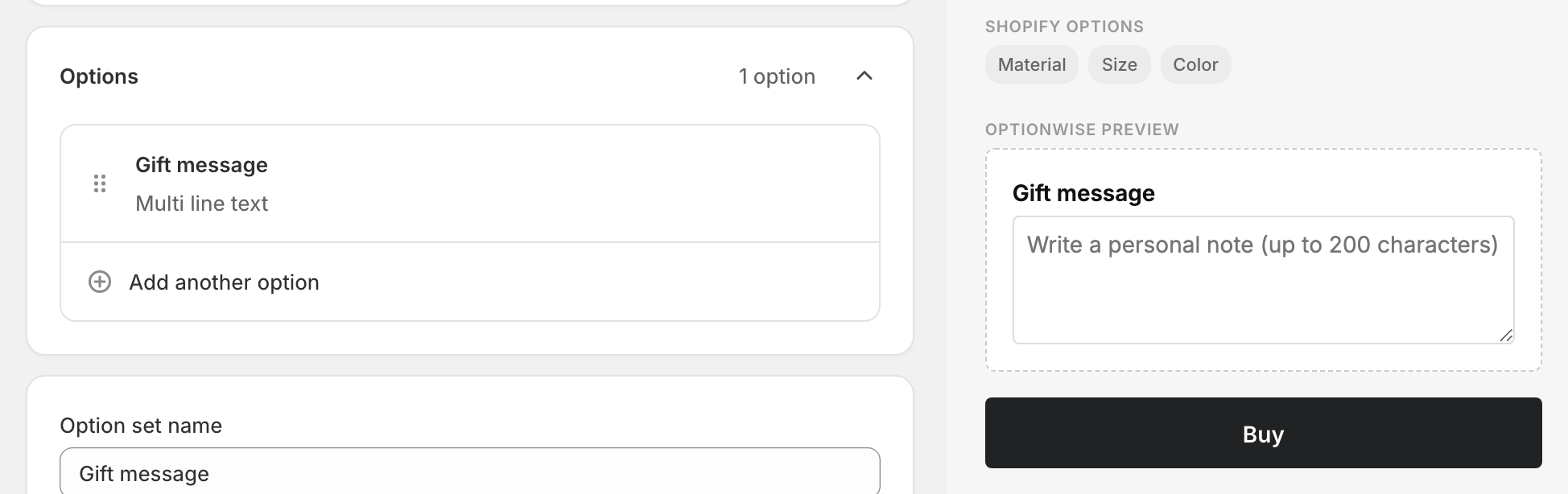
- Enter an Option name (“Gift message”, “Special instructions”).
- Optionally, add a Placeholder — hint text shown in the empty box.
- Done, then Save.
Like single-line text, there are no values to add — the customer types their own.
Advanced settings
- Validation → Required — require the customer to fill it in.
- Validation → Minimum length / Maximum length — set a character minimum or maximum.
- Visibility — show the box only after another choice. See Conditional logic.
Consider a maximum length for gift messages so they fit on the printed card or packing slip your fulfillment process uses.
What customers see
A multi-line text box next to your label. The text is added to the cart as a line-item property and carries through to the order.
Related
- Text (single-line) — for short, one-line input
- Where options appear — how the text shows on orders