Text (single-line)
A free-form single-line text input. Use it for short customer-supplied text — engraving names, monograms, gift-message lines, jersey numbers. For anything longer than a line, use Text (multi-line).
When to use it
- Personalization the customer types: a name to engrave, initials, a short message.
- Reference numbers or codes the customer needs to supply.
- Any short answer where a fixed list of values wouldn’t work.
Add a text option
- In your option set, click Add option.
- Set Type to Single line.
- Enter an Option name (“Name to engrave”, “Monogram”).
- Optionally, add a Placeholder — grayed-out hint text shown in the empty field (“e.g. Alex”).
- Done, then Save.
Text options have no values to add — the customer fills the field in.
Advanced settings
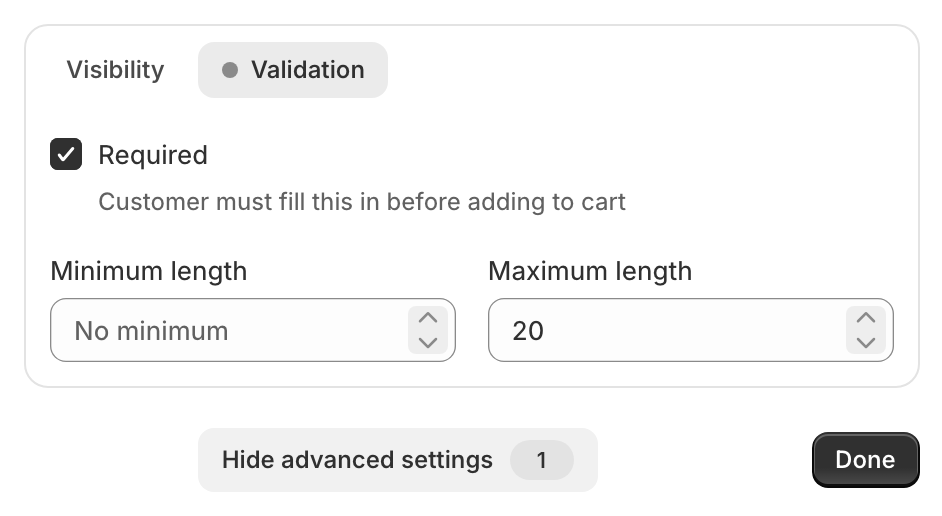
- Validation → Required — require the customer to fill it in before adding to cart.
- Validation → Minimum length / Maximum length — set a minimum or maximum number of characters (e.g. cap engraving at 20 characters to fit the product).
- Visibility — show the field only after another choice is made. See Conditional logic.
A maximum length is the most common setting here — it stops customers typing more than will physically fit on the product. Set it to whatever your engraving or print area allows.
The Validation tab, where you set Required and the length limits:
What customers see
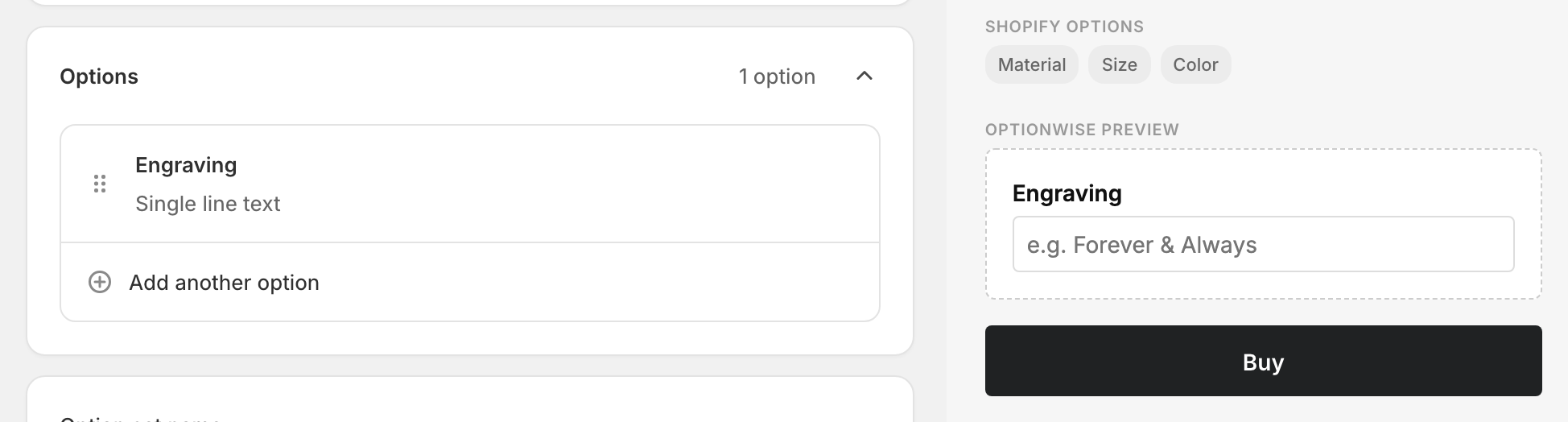
A single-line input next to your label. Whatever they type is added to the cart as a line-item property, so it appears in the cart, at checkout, and on the order exactly as entered.
Related
- Text (multi-line) — for longer messages
- Number — when the answer must be numeric